A contribution from F1PTV
This Linux version is the work of Jacques, F1PTV. He adapted the original Windows program (DX Rig Bridge 4.1.1 by F1LED), wrote the launch scripts and the complete guide reproduced below, and offers it free of charge to all radio amateurs.
Many thanks to him for this remarkable work. 73!
About this tutorial. DX Rig Bridge is the work of F1LED (dx.f1led.fr) and originally runs on Windows. This tutorial describes an unofficial adaptation for Linux Mint (version 4.1.2), made by F1PTV, which controls an FT-710 through flrig.
Tested with: Linux Mint 22.x, FT-710, two flrig instances in parallel, Falkon browser.
1. Context and principle
| Hardware and software | |
|---|---|
| System | Linux Mint 22.3 Zena (Ubuntu 24.04 base), Linux kernel 7.0.0-38-generic, Cinnamon 6.6.9 |
| Python | 3.12.3 (shipped with Mint) |
| Hamlib / rigctld | 4.5.5 (libhamlib-utils package) |
| flrig | 2.0.04 |
| Radio | Yaesu FT-710 connected to the PC with a USB cable (CAT) |
| Browser | Your choice (Falkon in the examples) |
Why flrig? Personally, I put flrig in front of every transceiver so that access to the radio is not monopolised and stays available to other programs. A “direct” connection remains possible.
Principle. The dx.f1led.fr page, open in the browser, sends your clicks on a spot to the bridge, a small Python program running on your PC. The bridge passes them to rigctld (Hamlib), which sends them to flrig, which controls the FT-710.
2. Preparation
Set up flrig
- Start flrig. In the Configuration window, Xcvr tab, choose FT-710 and the serial port.
- Set the Baud rate to the same value as the radio's CAT RATE menu (38400 in this example).
- Click Init: the Connected indicator turns green and flrig shows the frequency of the radio.
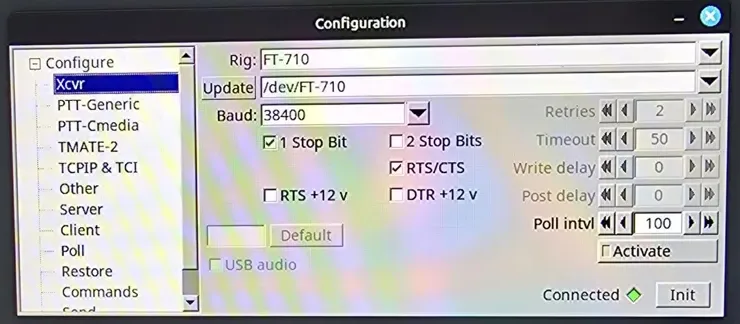
Serial port name. In my screenshots, /dev/FT-710 is a personal alias. On your PC the port will rather be /dev/ttyUSB0 or a name from the /dev/serial/by-id/ folder (list it with ls /dev/serial/by-id/).
If flrig cannot open the port, add your user to the dialout group with sudo usermod -aG dialout $USER, then log out and back in.
Find the flrig XML-RPC port
The bridge talks to flrig through its XML-RPC port. To find it, open the flrig Configuration window, Server tab:
- the Xmlrpc port field is 12345 by default;
- the Client tab is not used here.
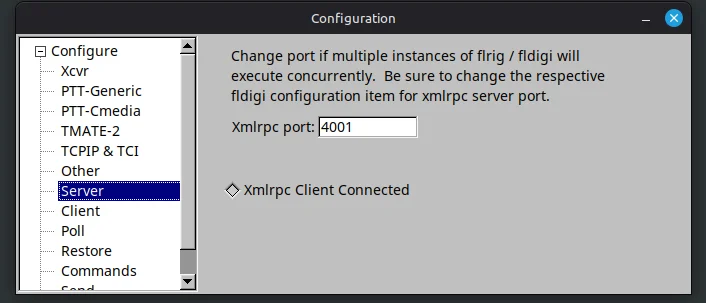
Several flrig instances in parallel. Each flrig must have its own port. In my shack: FT-710 on port 4001, IC-7300 on port 12345. Always use the port of the flrig that drives the FT-710.
Install the system packages
In a terminal:
sudo apt update
sudo apt install python3-venv python3-tk libhamlib-utils \
    gir1.2-ayatanaappindicator3-0.1
Python is already installed. This adds:
- python3-venv: private Python environments;
- python3-tk: the graphical interface of the settings window;
- libhamlib-utils: the rigctl and rigctld programs;
- gir1.2-ayatanaappindicator3-0.1: the icon in the taskbar.
3. Installing the bridge
Create the Python environment (once)
A “venv” is a private folder for the libraries of the script, so the system itself is left untouched:
python3 -m venv --system-site-packages ~/drb-venv
~/drb-venv/bin/pip install websockets customtkinter pystray pillow \
    cryptography psutil pyserial
Put the three files in place
Download the DRB_LINUX_V412.zip archive (button at the top of the page). It contains the three bridge files and the PDF guide:
| File | Purpose |
|---|---|
| DRB_V40_LINUX.py | The bridge (version 4.1.2), which links the DX Cluster to flrig |
| install-autostart.sh | Installs the launcher and the automatic start (section 4) |
| stop-drb.sh | Stops the bridge and its rigctld |
Then, in a terminal:
mkdir -p ~/drb
unzip ~/Downloads/DRB_LINUX_V412.zip -d ~/drb
Keep the names exactly as they are: Linux distinguishes upper case, lower case, hyphens and underscores. If your download folder has another name, or your browser added “(1)” to the archive name, adjust the command.
Check the version of the script:
grep -n '^VERSION' ~/drb/DRB_V40_LINUX.py
It must print VERSION = "4.1.2-linux".
Check that flrig answers
With flrig running and connected to the FT-710, test the Hamlib → flrig link (replace 12345 with your flrig port, see 2.2):
rigctl -m 4 -r 127.0.0.1:12345 f
A frequency must be displayed. Make sure it is the FT-710's and not another radio's: otherwise the port is wrong.
Also check that TCP port 4532, used by the bridge, is free:
ss -ltn | grep 4532
No output means the port is free. If a line appears, another rigctld is already running: choose another port (4540 for example) in the settings window.
First start, with the settings window
~/drb-venv/bin/python ~/drb/DRB_V40_LINUX.py
In the window:
- Model: 4 (FLRig);
- flrig host:port (-r): 127.0.0.1:12345, or your flrig port (for example 127.0.0.1:4001), typed by hand;
- TCP port (-t): 4532.
Click Start Bridge. The window closes and the “RIG” icon appears near the clock. Your settings are saved in ~/drb/config.json.
Keep the terminal open. Closing the terminal stops the bridge. Section 4 explains how to start it automatically.
Accept the certificate (first time only)
The bridge uses a secure connection (wss) with a certificate it generates itself, valid on your PC only. The browser must accept it once. Open https://127.0.0.1:5395 in the browser you use for dx.f1led.fr (each browser must accept it separately):
- Chrome, Firefox: Advanced → Continue;
- Falkon: “SSL certificate error” box → Yes;
- the page then shows “You cannot access a WebSocket server directly with a browser”: this is normal.
Required step. Without it, dx.f1led.fr cannot connect to the bridge.
Test
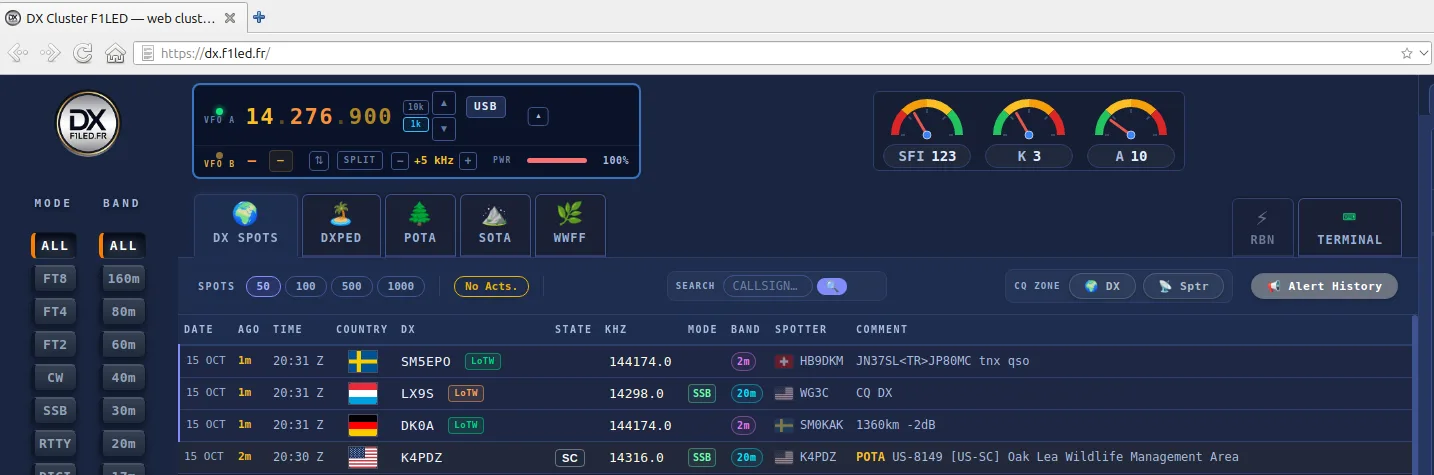
- Open dx.f1led.fr and reload the page (Ctrl+Shift+R).
- Click Connect TX: VFO A shows the frequency of the radio.
- Click a spot: the radio changes frequency and mode (LSB below 10 MHz, USB above, CW, etc.).
- On a split spot, enable SPLIT: VFO B receives the transmit frequency.
In the terminal you should see, for example:
QSY -> 7200000 Hz  dx=SSB  hamlib=LSB
QSY: F=OK M=OK
SPLIT ON: OK
4. Starting automatically
Automatic mode saves retyping the command and clicking Start.
Prerequisite. Having done the first start (3.4): automatic mode reuses ~/drb/config.json.
What automatic mode does
- The --auto option skips the settings window and reuses ~/drb/config.json.
- The bridge waits for flrig to answer (up to 10 minutes) before starting rigctld, so it can start before flrig.
- The start-drb.sh launcher writes its log to ~/drb/drb-start.log.
Option A — Start at login
bash ~/drb/install-autostart.sh
The installer creates the start-drb.sh launcher, adds the “DX Rig Bridge” and “Arrêter DX Rig Bridge” (stop) entries to the applications menu, and schedules the start at login, with a 10-second delay.
To test without logging out:
~/drb/start-drb.sh &
pgrep -fa DRB_V40
The “RIG” icon must appear without the settings window. pgrep prints one line if the bridge is running, none if it is stopped.
Option B — From your station start-up script
If a script already starts your programs, run the installer once to create start-drb.sh, then remove the automatic start to avoid a double launch:
bash ~/drb/install-autostart.sh
rm ~/.config/autostart/dx-rig-bridge.desktop
Then add to your script, before the browser:
~/drb/start-drb.sh &
falkon -r -p dx &
In this example Falkon (a lightweight browser) is started with the “dx” profile, whose home page is https://dx.f1led.fr. The bridge comes before the browser so that it is ready when the page loads; the order relative to flrig does not matter, because the bridge waits for it.
Do not combine A and B. With option B, the ~/.config/autostart/dx-rig-bridge.desktop entry must have been removed, otherwise the bridge starts twice.
Stopping the bridge
Reference method:
~/drb/stop-drb.sh
Or the “Arrêter DX Rig Bridge” entry of the applications menu. The script stops the bridge and the rigctld it started; it touches neither flrig nor the other rigctld instances (JTDX, Decodium, etc.).
“RIG” icon. The menu of the icon (Quit) has not been validated under Cinnamon: prefer stop-drb.sh.
In your station shutdown script
Stop the bridge before flrig. Otherwise the bridge's rigctld keeps polling a flrig that no longer exists: nothing breaks, but it fills the log with errors.
# Stop the Python bridge
~/drb/stop-drb.sh 2>/dev/null
pkill -TERM flrig 2>/dev/null
To test, with the bridge running (“RIG” icon visible), run your shutdown script, then:
pgrep -fa "DRB_V40|rigctld"
No line must be printed (apart from the rigctld of other programs, if any).
Warning. This test closes every application handled by your shutdown script: do not run it during a QSO.
5. Troubleshooting and cheat sheet
| Symptom | Likely cause and fix |
|---|---|
| VFO A stays at 14.000.000 and the radio does not move | The certificate is not accepted in this browser (3.5) or the bridge is stopped (pgrep -fa DRB_V40). Click Connect TX. |
| VFO A shows the frequency of another radio | Wrong flrig port in the settings window (see 2.2). |
| “426 Upgrade Required” in the terminal | Normal: the browser opened https://127.0.0.1:5395 directly. |
| Nothing starts in automatic mode | Read ~/drb/drb-start.log and check that flrig is running. |
| Port 4532 is already in use | Another rigctld is running: choose another TCP port (4540 for example) in the settings window. |
| Action | Command |
|---|---|
| Start the bridge with the settings window | ~/drb-venv/bin/python ~/drb/DRB_V40_LINUX.py |
| Start the bridge in automatic mode | ~/drb/start-drb.sh & |
| Stop the bridge | ~/drb/stop-drb.sh |
| Check whether it is running | pgrep -fa DRB_V40 |
| Logs | ~/drb/dx_rig_bridge.log and ~/drb/drb-start.log |
| Reopen the settings window | Stop the bridge, then start it without --auto |
To print or keep offline: the original guide as a PDF (8 pages, in French), also included in the archive.
Credits
DX Rig Bridge: F1LED — dx.f1led.fr.
Adaptation for Linux Mint (version 4.1.2): F1PTV, October 2026, made from the Windows version 4.1.1 by F1LED.
Hamlib (rigctld) and flrig are free software, installed from your distribution and not included in the archive. Looking for the Windows version? See the DX Rig Bridge for Windows page.